You sit down for a long-awaited movie night, armed with a bowl of popcorn and the latest blockbuster queued up on your Roku Ultra. You’ve invested in a high-end 4K HDR television, and your streaming subscription is the premium tier. But as the movie starts, something feels wrong. The colors look slightly muted, the edges of the actors aren’t quite sharp, and there’s a distinct lack of that "window-like" clarity you expected from Ultra HD.
It’s a common frustration in the smart home world: the "soft" 4K picture. Often, users blame their internet connection or the streaming service itself, but the culprit is frequently much closer to home—the humble HDMI cable tucked behind your TV. Your Roku may fail to display 4K if you use an older Standard Speed HDMI cable or plug it into an HDMI port that lacks HDCP 2.2 support. In many cases, your Roku detects a hardware limitation and automatically "downgrades" your signal to 1080p just to keep the video playing, often without sending you a clear warning.
The 'Pipe' Problem: Why Your Old Cable Can't Handle 4K
To understand why your cable matters, think of it as a water pipe. A 1080p HD signal is like a steady stream of water that fits comfortably through a standard pipe. However, a 4K signal at 60Hz with HDR (High Dynamic Range) is more like a fire hose. If the pipe is too narrow, the data simply can't get through fast enough, leading to signal dropouts, "sparklies" (flickering white pixels), or the system defaulting to a lower resolution.
The technical bottleneck here is bandwidth. Standard Speed HDMI cables are capped at 10.2 Gbps, failing to meet the 18 Gbps minimum bandwidth required for stable 4K 60Hz streaming. When you try to push a 4K/60fps HDR signal through a 10.2 Gbps cable, the "handshake" between your Roku and your TV fails to verify the necessary speed, and the Roku scales back the quality to prevent the screen from going black entirely.
To support 4K at 60Hz with HDR on Roku, you must use a 'Premium High Speed' HDMI cable (18Gbps) or an 'Ultra High Speed' cable (48Gbps). When shopping for the best HDMI cable for Roku Ultra or other 4K-capable Roku sticks, look for the official "Premium Certified" QR code on the packaging.
HDMI Cable Comparison at a Glance
| Cable Type | Max Bandwidth | Max Resolution/Refresh | Best For |
|---|---|---|---|
| Standard HDMI | 4.9 Gbps | 1080i / 720p | Older DVD players |
| High Speed HDMI | 10.2 Gbps | 4K at 30Hz | Basic 4K (no HDR) |
| Premium High Speed | 18.0 Gbps | 4K at 60Hz + HDR | Roku Ultra / Streaming Stick 4K |
| Ultra High Speed | 48.0 Gbps | 8K at 60Hz / 4K at 120Hz | PS5, Xbox Series X, Future-proofing |
Not All Ports Are Created Equal: The HDCP 2.2 Bottleneck
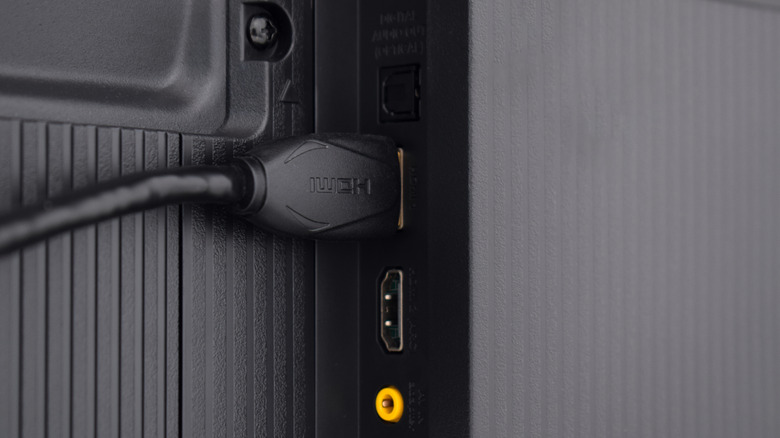
Even if you have the world’s best cable, where you plug it in matters just as much as the cable itself. Many 4K TVs, especially those manufactured between 2015 and 2018, do not support 4K on every single HDMI port. Often, only HDMI 1 and HDMI 2 are rated for the full 4K specification, while the others might be older HDMI 1.4 ports.
Connecting a 4K Roku to an outdated HDMI 1.4 port limits refresh rates to 30Hz, reducing motion smoothness by 50% compared to HDMI 2.0 standards. This is particularly noticeable in sports or action movies, where movement can appear jittery or "stuttery."
Furthermore, there is the issue of HDCP 2.2 (High-bandwidth Digital Content Protection). This is the "digital handshake" required by Hollywood studios and streaming services like Netflix and Disney+ to prevent piracy. If your Roku is plugged into a port that only supports HDCP 1.4, the streaming app will refuse to play 4K content, capping your resolution at 1080p HD regardless of your cable or internet speed.
⚠️ The HDCP 2.2 Warning
If you see an error message on your Roku stating "HDCP Error Code 020," it almost always means the port you are using doesn't support the 2.2 security standard. Look at the back of your TV for labels that say 4K, 10bit, or HDCP 2.2. If no labels exist, consult your TV manual to find which port is the "primary" 4K input.
How to Manually Force 4K in Roku Settings
Roku devices are designed to be "plug and play." By default, they use an "Auto-detect" feature to determine the best resolution for your TV. However, this feature is conservative. If there is even a minor hiccup in the HDMI handshake due to an older cable or a secondary port, the Roku will default to 1080p to ensure you at least have a working picture.
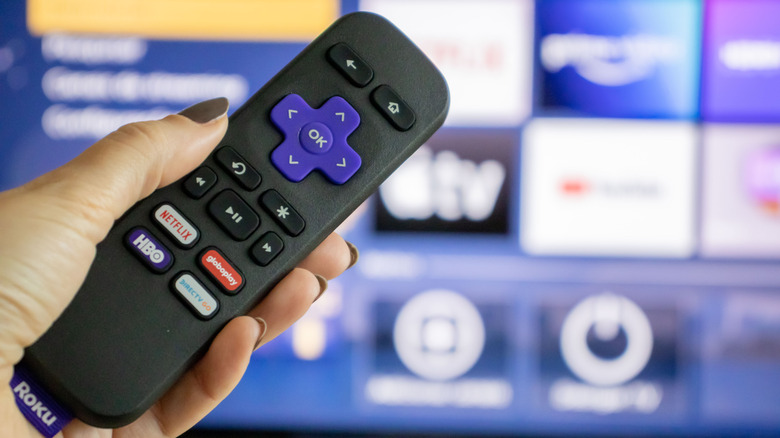
To manually fix resolution and ensure you are getting every pixel you paid for, navigate to Settings > Display type on your Roku home screen and select the 4K HDR option that matches your TV's specs.
Step-by-Step Resolution Override:
- Press the Home button on your Roku remote.
- Scroll to and select Settings.
- Select Display type.
- Instead of "Auto-detect," choose 4K HDR 60Hz (or the highest setting supported by your TV).
- The Roku will perform a "Display test." If your screen goes black for a few seconds, don't panic—it’s testing the bandwidth.
- If the picture returns and asks "Does the screen look correct?", select Yes, screen looks good.
If the screen stays black or returns to the menu with an error message, your current HDMI cable or port is definitely the weak link. It has failed the 18 Gbps bandwidth test, and you will need to swap the cable or move to a different HDMI port before 4K will work.
4K Troubleshooting Checklist
If you’ve upgraded your cable and verified your ports but the picture still feels lackluster, there are a few other environmental factors to check. Smart home integration is only as strong as its weakest link.
- Check Internet Speed: While the cable handles the local hardware connection, your bandwidth from your ISP is the fuel. You need a minimum of 25 Mbps steady throughput for a single 4K stream. Use the "Check Connection" tool in the Roku Settings > Network menu to see your actual download speed at the device.
- Verify Streaming Subscriptions: It sounds simple, but many users forget that services like Netflix require a specific "Premium" plan to unlock 4K and HDR. If you are on the Standard plan, your Roku will never receive a 4K signal to begin with.
- Inspect for 'Handshake' Issues: Sometimes the software gets confused. Try a "Power Cycle" by unplugging the power cords for both your TV and your Roku, waiting 30 seconds, and plugging the TV in first, followed by the Roku. This forces a fresh HDCP handshake.
- Disable "Eco-Modes": Some TVs have power-saving settings on specific HDMI ports that limit their performance. Ensure "HDMI Ultra HD Deep Color" (LG), "HDMI UHD Color" (Samsung), or "Enhanced Format" (Sony) is turned ON in your TV’s internal settings menu for the port your Roku is using.
FAQ
Do I need an expensive gold-plated cable for better 4K? No. HDMI is a digital signal—it either works or it doesn't. You don't need a $100 "boutique" cable. You simply need a cable that is certified as Premium High Speed (18Gbps). A $10 certified cable will perform identically to a $100 one over standard distances (6 feet or less).
Why did my 4K stop working after a Roku update? Occasionally, firmware updates can reset the "Display type" to "Auto-detect." If your cable is on the edge of the 10.2 Gbps / 18 Gbps threshold, the update might cause the Roku to play it safe and drop back to 1080p. Re-run the manual display setup in settings.
Can I use a 4K Roku on a 1080p TV? Yes, you can. The Roku will detect the 1080p maximum resolution of the TV and output a downscaled signal. You won't get 4K benefits, but the device will function perfectly fine.
Summary: Reclaiming Your Ultra HD Experience
Getting the perfect 4K picture isn't just about owning the right screen; it's about ensuring the data has a clear, fast path from your Roku to your eyes. By ditching outdated "Standard" cables in favor of Premium High Speed versions and ensuring you're utilizing HDCP 2.2 compatible ports, you eliminate the most common bottlenecks in home automation.
Don't let a $5 cable ruin a $1,000 home theater experience. Check your labels, verify your settings, and finally see what your 4K TV is truly capable of.